Mario Artist Polygon Studio
Published on 05 Feb 2026
At the time of writing (August 29th, 2020), it is Mario Artist Polygon Studio’s 20th anniversary.
So let’s talk about this final title of the Mario Artist series. This title is bundled with no accessory this time, and it’s compatible with nothing but the N64 Controller and N64 Mouse (which I really recommend using both!)
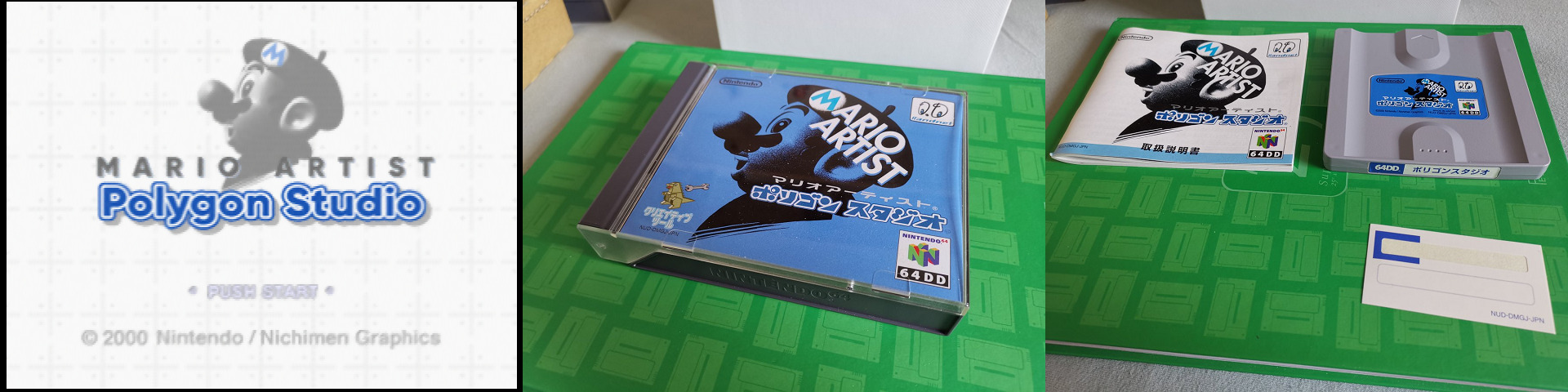
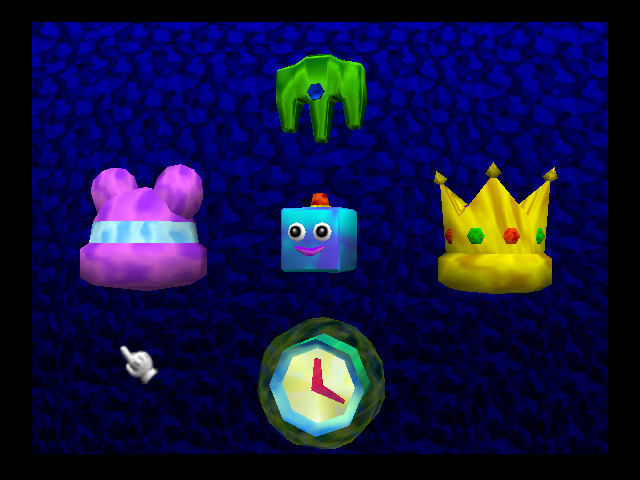
As you might have guessed, this is about 3D modeling. But it’s a bit more than that. This title gives off a really wacky and weird vibe from the get go. The main menu has a couple modes: Simple, Expert, Gallery, Option, Shortcut.
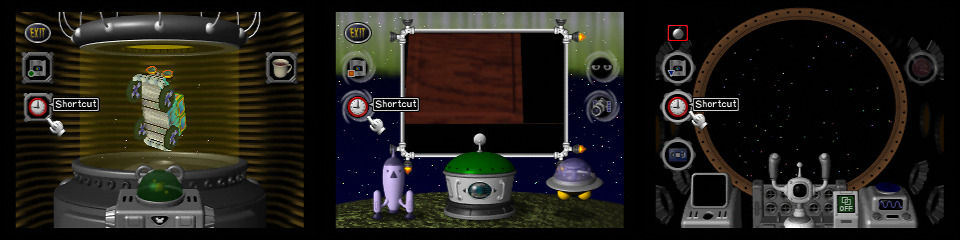
In many of the menus, you will find a clock icon. That’s how you set up the shortcut so that you can go back to that specific mode from the main menu.
Simple
Simple mode is really the mode where you can’t really do much, you can look at the sample models and then move each “block” around. You can be a bit creative but it’s not where you’ll make the most use of it. I’ll talk about “blocks” in more detail later.
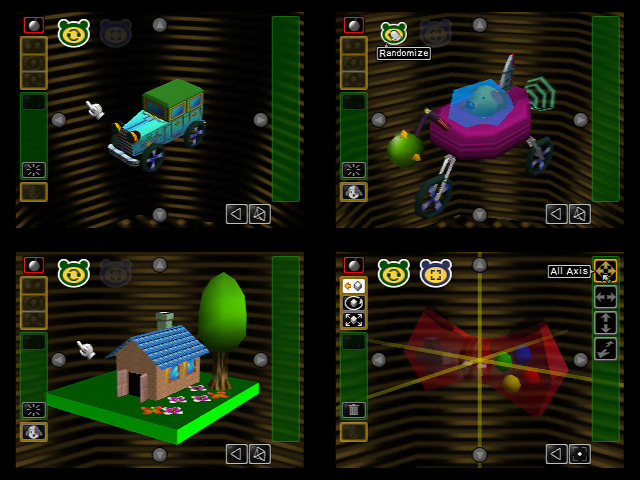
Expert
Expert mode is where the real creativity tools are. You have several modes: Modeler Rocket, Block Dome, Stage UFO, a photo mode, and a simple showcase mode.
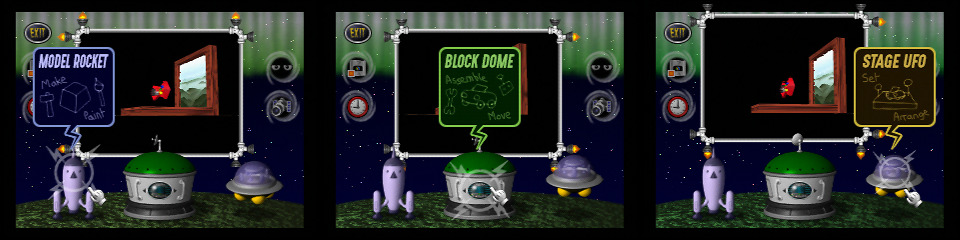
Block Dome
I need to talk first about Block Dome, as it is very easy to misunderstand the difference between that and Modeler Rocket in my opinion.
Any 3D object is considered a “block”. You can find basic premade blocks, between simple shapes to more detailed shapes of all kinds, sometimes even animated, and noisy.
There’s also another aspect to this editor that we will talk about later.
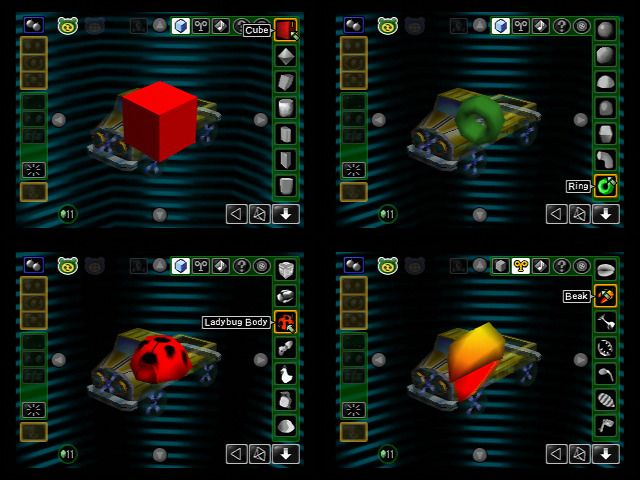
Most of the exemples show that you can make something with just building blocks that you assemble the way you want.
You can move, rotate, scale, glue, duplicate, mirror duplicate (VERY USEFUL!) and more, and in a seperate mode you can recolor them however you want.
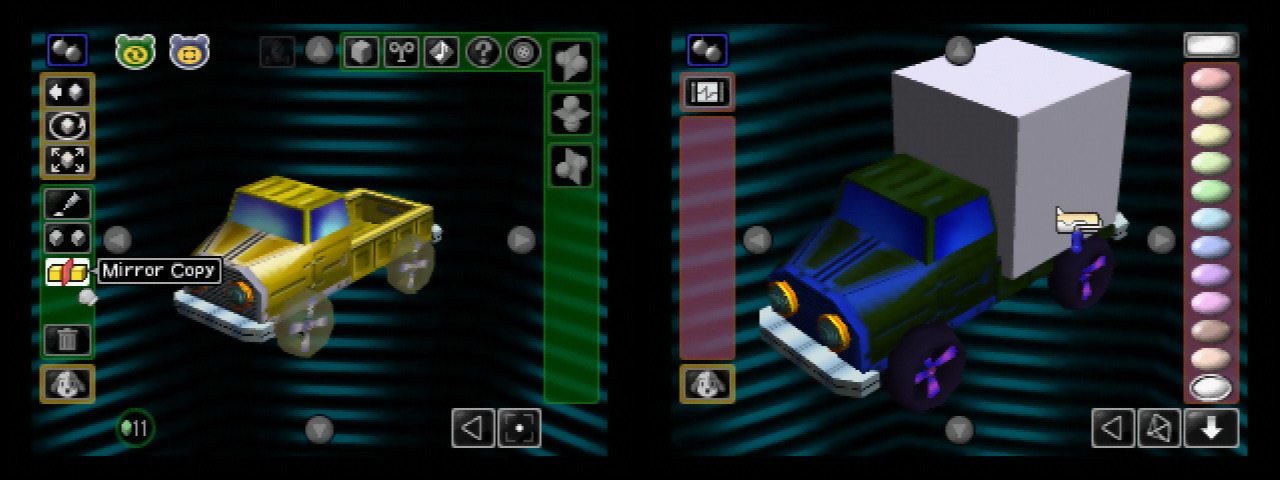
Modeler Rocket
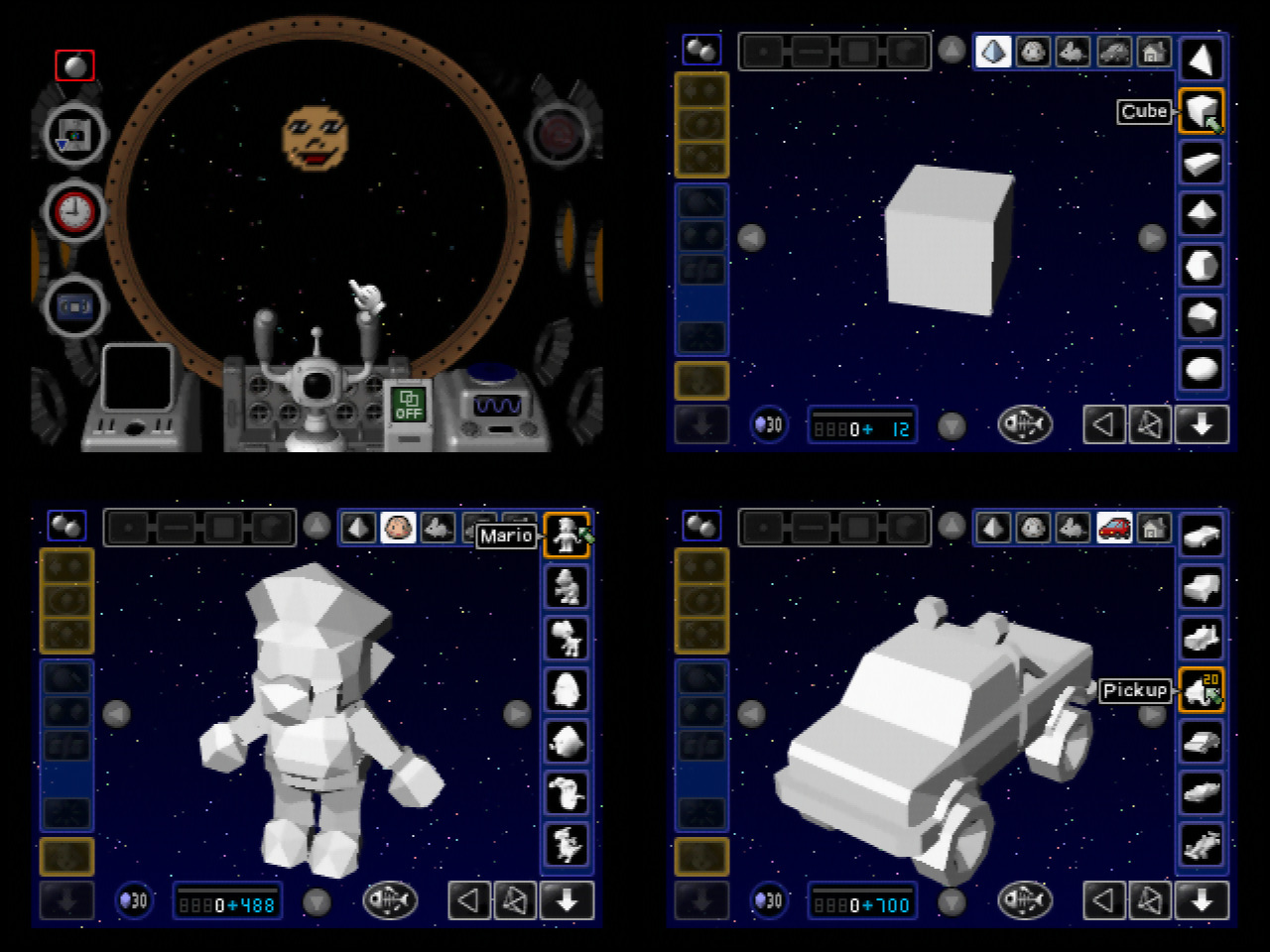
Modeler Rocket is where you make your own custom model, this is the real deal!
Using models of many kinds, from simple to complex ones, you can then actually reshape them to whatever you want with classic 3D modeling tools, within the limits of this modeler which is 1000 polygons.
You can also select existing models like Mario, TVs, the N64 Controller and more.
There’s also something called Craft Mode. This is for making simpler models to send to Randnet via Communication Kit, and then they mail you the paper craft that you can build by yourself. Pretty cool feature, but I suggest to not use it as it limits your choices.
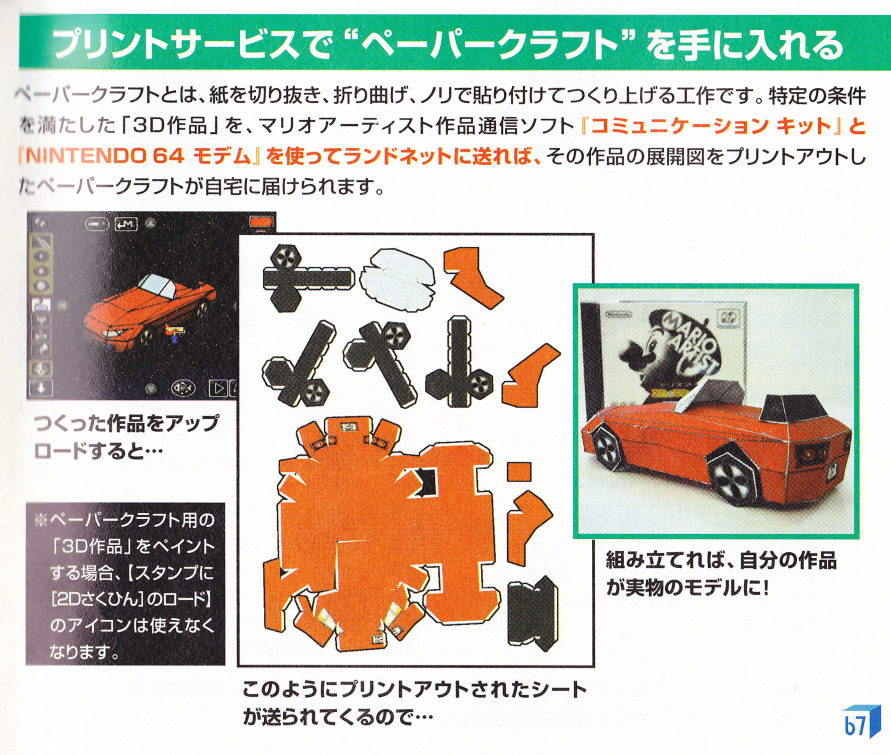
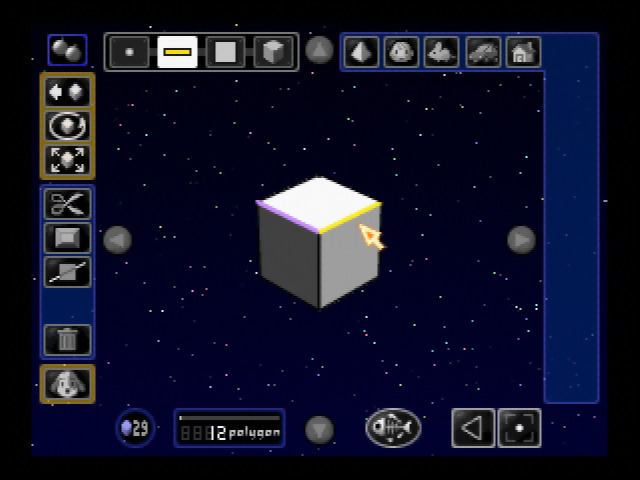
This modeler has several edit modes: point, edge, face and model. Each have different sets of tools to help you model.
You can move, rotate, scale, extrude, round, cut, duplicate, change shading, and so on, depending on what you are editing. It is powerful but hard to master.
It comes with prerecorded tutorials on how to use it with exemples of models that you can recreate by yourself, but you can also watch it here:
https://www.youtube.com/watch?v=NmW9Ipc2FhA
Once you’re done modeling and have something you are satisfied with (or maybe just taking existing models), you can get to paint and draw on them!
Keep in mind the model shading setting beforehand, because you cannot change that in the Paint mode.
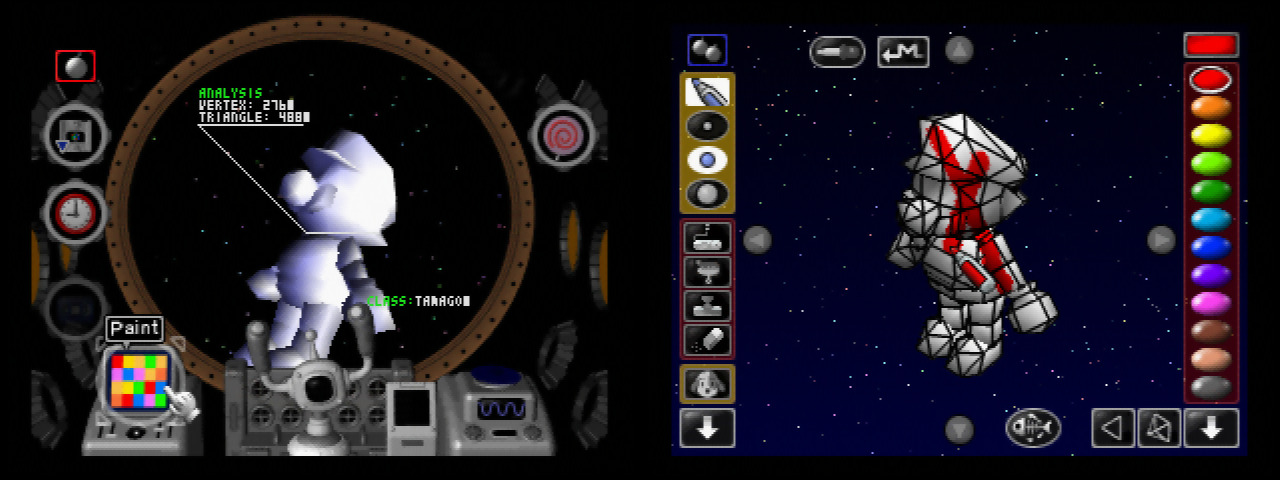
The Paint mode works like you would expect:
You can directly draw on the model with different kinds of pens, fill the model with a color, use stamps, import a picture as a stamp or even eat the color away to make parts of it transparent!
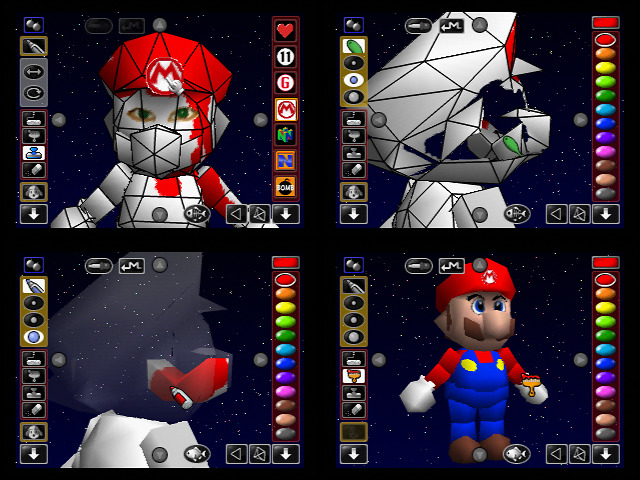
You can also mask certain models to help you draw if it’s on the way, and also remove the wireframe. Don’t forget the camera view icons on the bottom right which helps you move the camera view in straighter ways, which is also present on every editor in this game.
And then after all this work… you can save it, and take a break. You can also import these custom models as an actor in your Talent Studio movie!
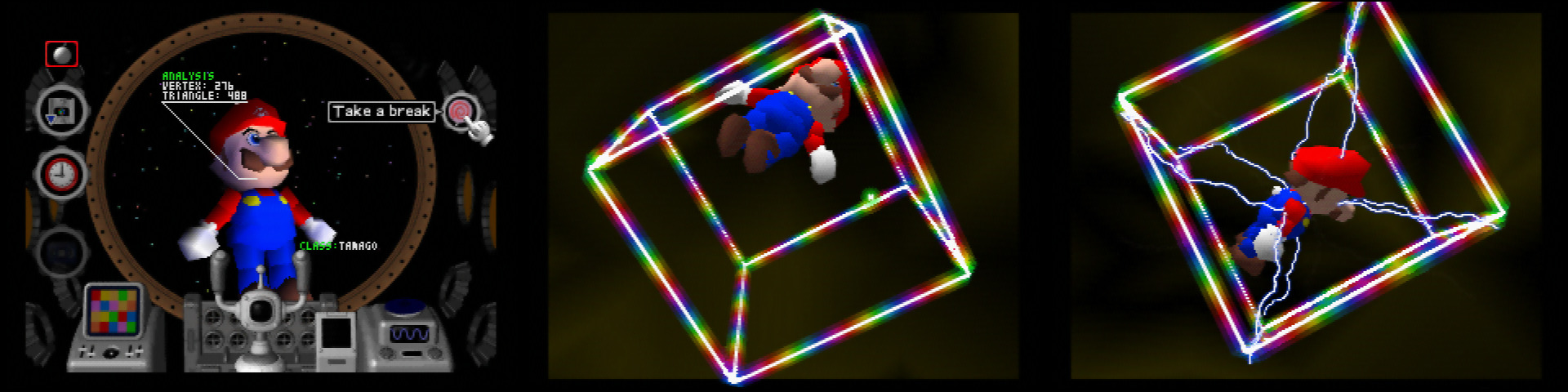
When you go back… you’ll notice your custom model might now appear as a block for Block Dome. You can do whatever you want with it as part of an even bigger model!
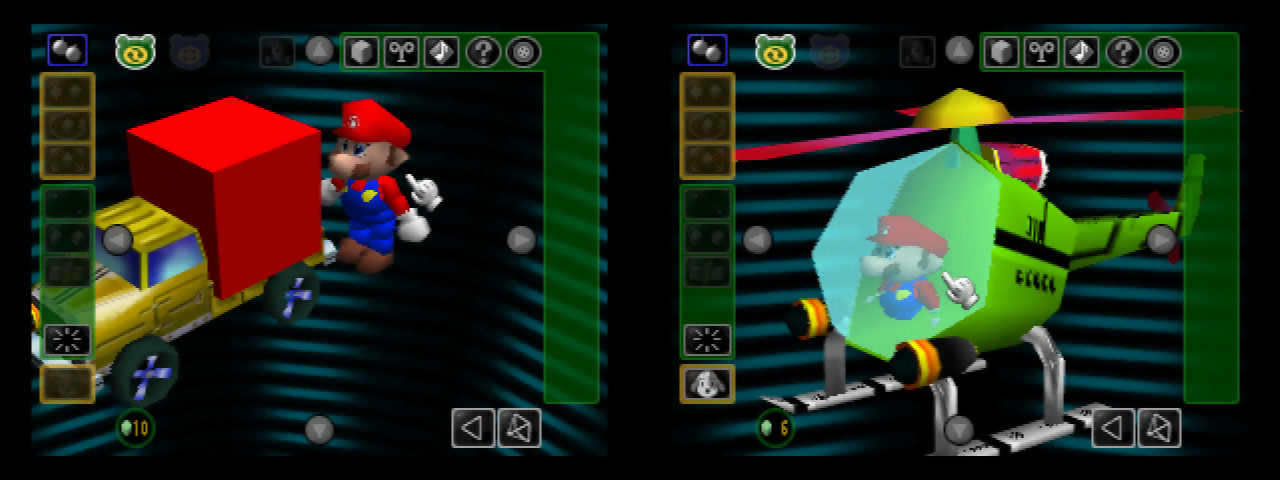
Minigames & Open World
But there are a couple details about Block Dome that I haven’t talked about yet. There are minigames! This is where your N64 Controller will be the most useful.
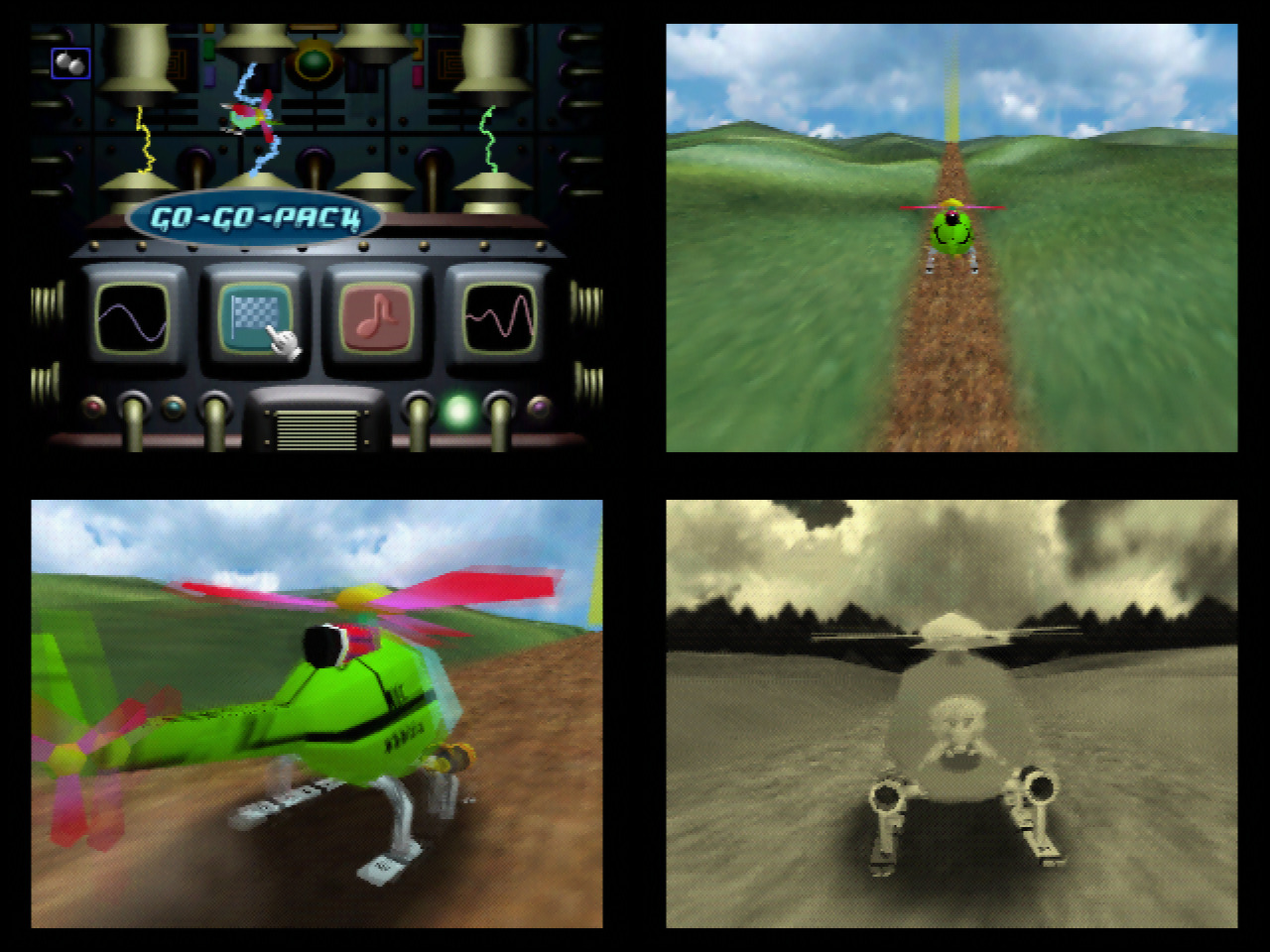
First of all, Go Go Park (a new version of the translation names it Chicken Race instead), where your creation is used like a toy car. You build up energy and get as close to the edge as possible without falling! There are 3 stages.
The closest to the edge is kept as a record with a trophy, but there is a secret record where you can go as far as possible, and it looks like a broken trophy, it’s kind of funny.
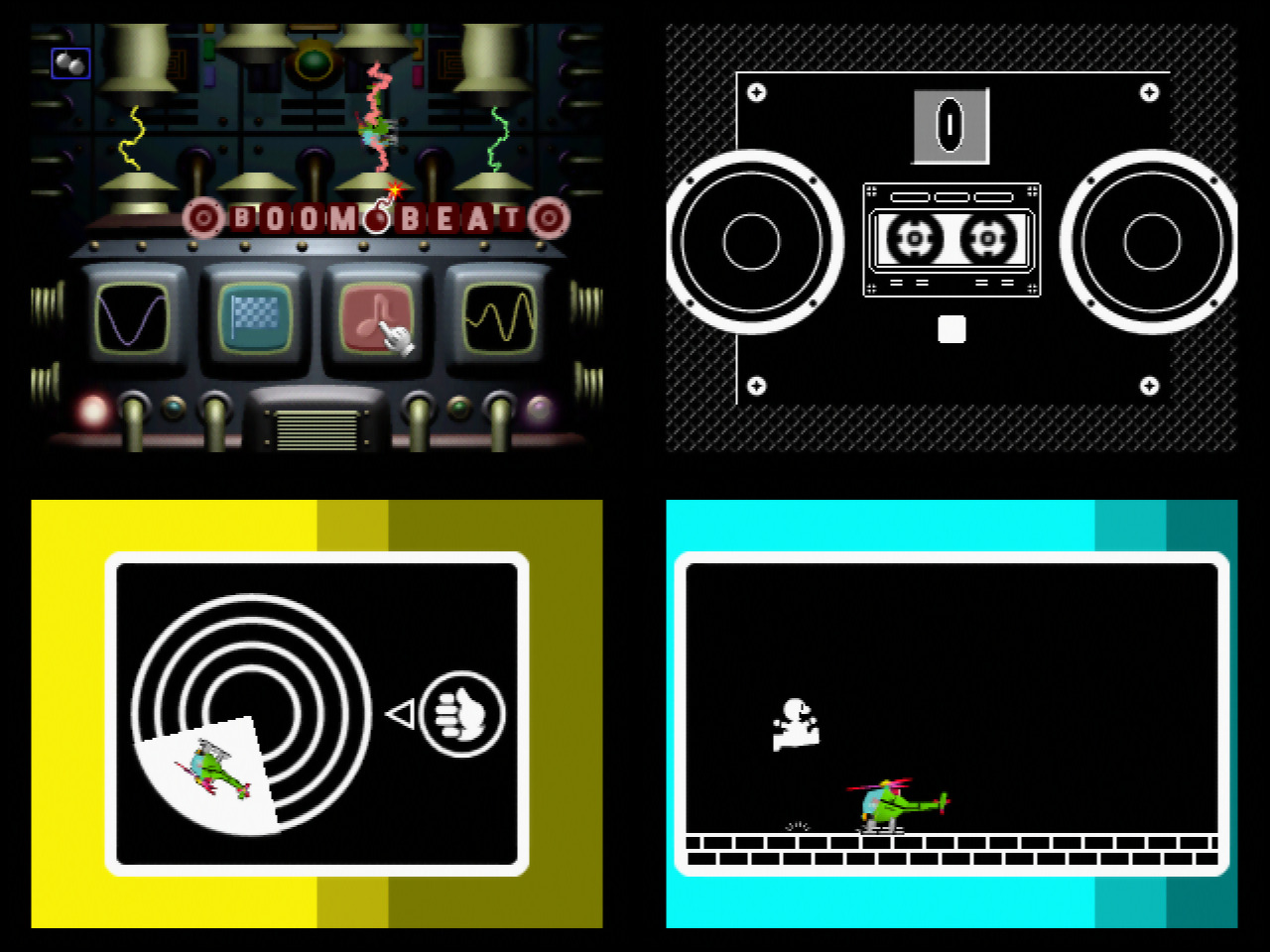
Then the most known exemple, Sound Bomber (named Boom Beat in my translation), where you attempt to beat as many microgames as possible, which also uses your creation in various ways. This was the base used for Wario Ware later on (also where I took the name “Chicken Race” as it is also in Wario Ware as a 2 player minigame).
There are only 8 microgames, some of which are even ported as is to Wario Ware like Baseball.
And then… one of the modes that most people don’t really know much about, Experimental World (Jikken World).
There is something else I didn’t tell you about blocks: there is a category of what’s called “Power Blocks”. These are building blocks to create your own vehicle.
There are many kinds of those, like wheels, feet, wings, engines and more, but you don’t start with a lot of them.
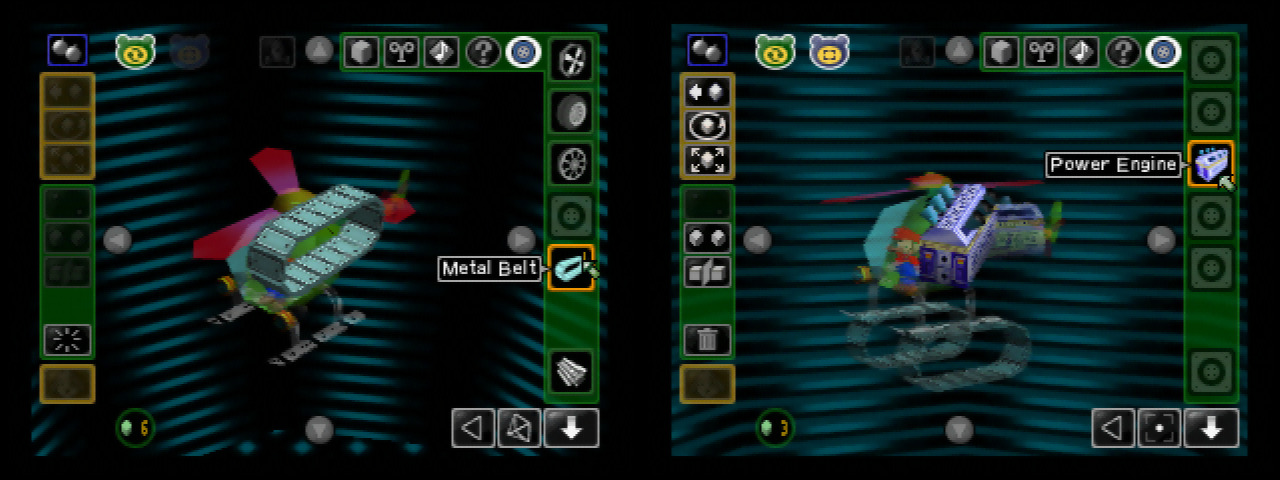
Once you put them on, you can then use your newly created vehicle to then wander around the experimental world, which is a full open world mode. It’s not a super huge world, but it is still pretty big for a world that don’t have loading times for the main map.
You then attempt to collect the missing Power Blocks (as well as bonus hidden ? Blocks) which you can then use to customize and upgrade your vehicle with, which their extra power allows you to explore further into the world, and collect even more and so on.
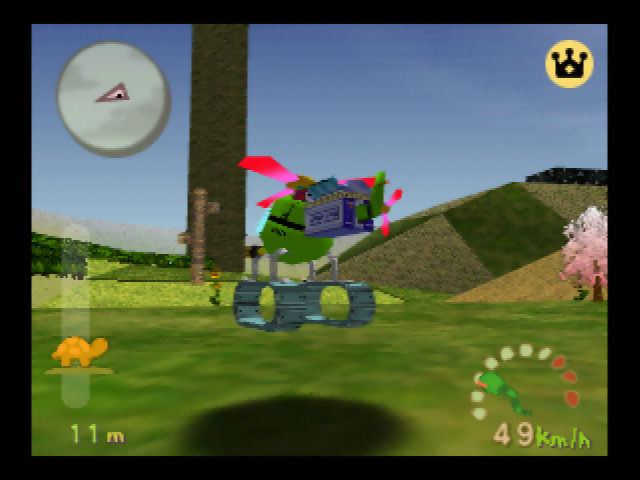
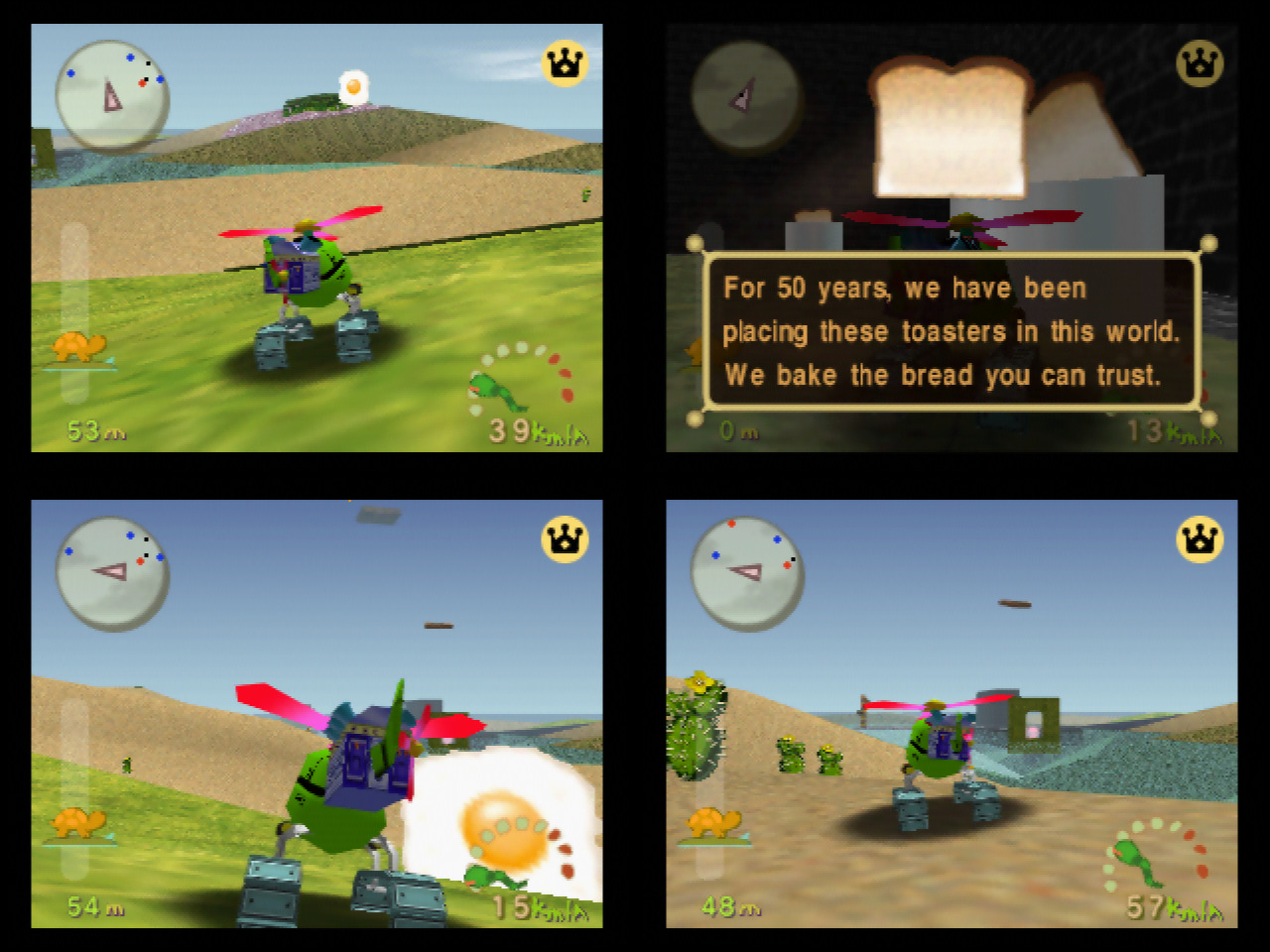
It is a weird and mysterious world, full of toasters that burns bread with hint text, fried eggs and a huge chikuwa fishcake who wants to eat your blocks (and makes a pretty creepy sound too)…
It’s really worth checking out! I can promise this: you can uncover who are the bakers behind these toasters!
Stage UFO
Let’s talk about Stage UFO: Basically it’s the part where you can set up a diorama on how you want to show off your creation of blocks.
You can change the stage, the background image, add special effects, change the lighting. A pretty simple mode.
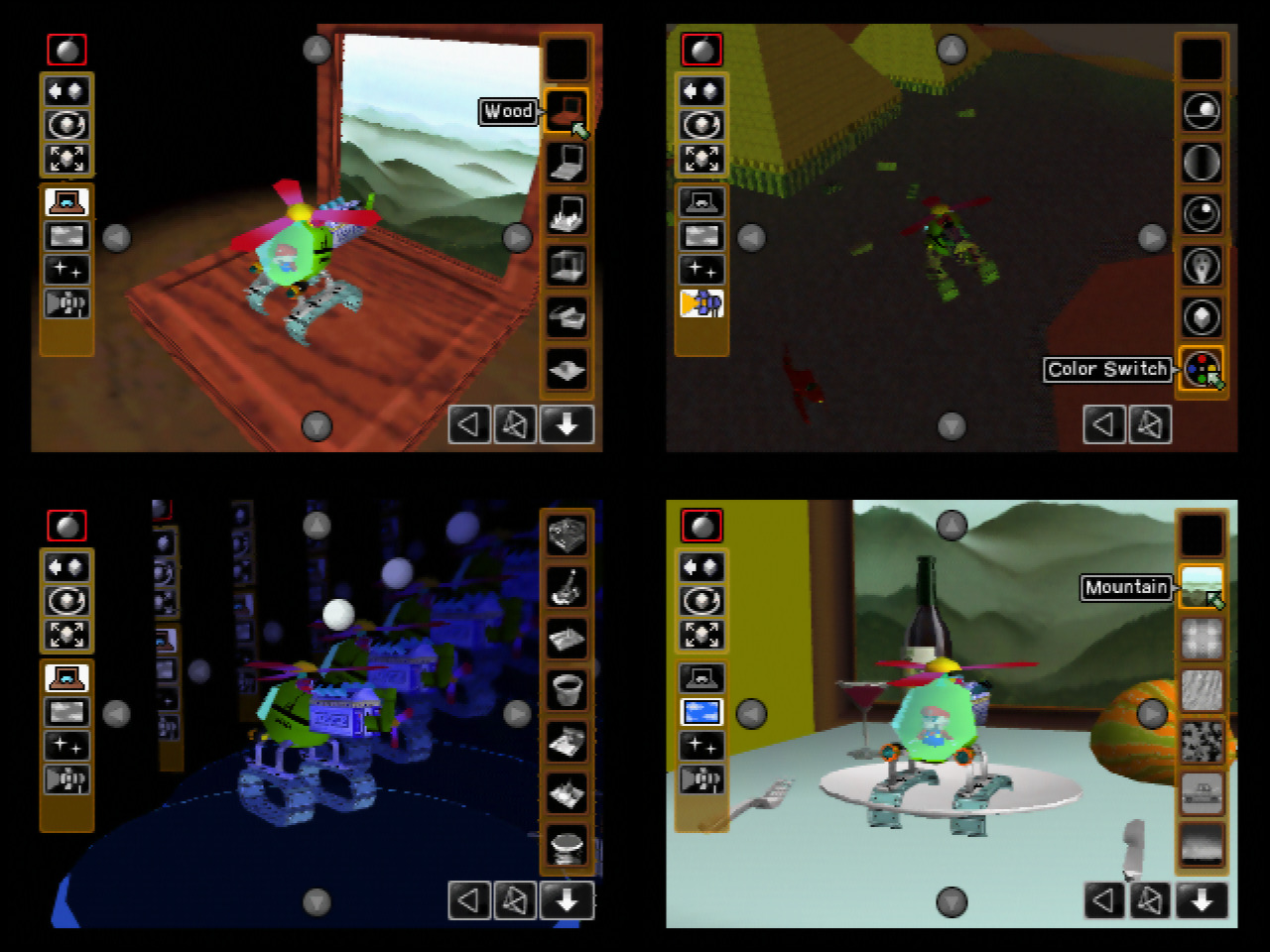
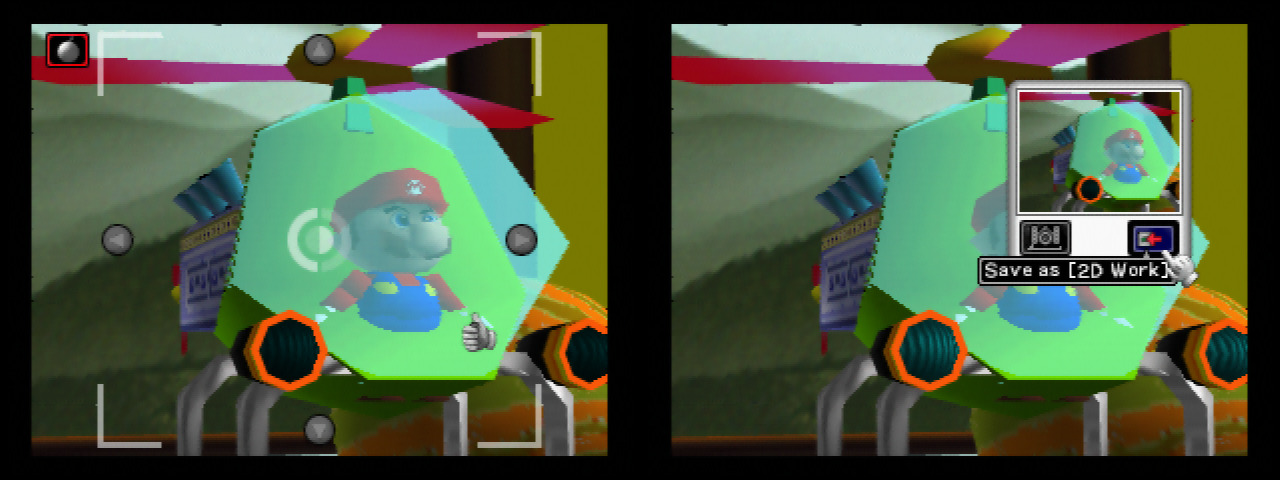
You also have a photo mode for the Stage, where you can take the pictures you want… and import them in other Mario Artist titles, if you want.
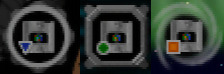
What you can save in this title are custom 3D models (blue triangle icon), your block setup (green circle icon) and the entire stage setup (orange square icon). It’s really easy to get confused if you’re not careful.
Rambling about Polygon Studio
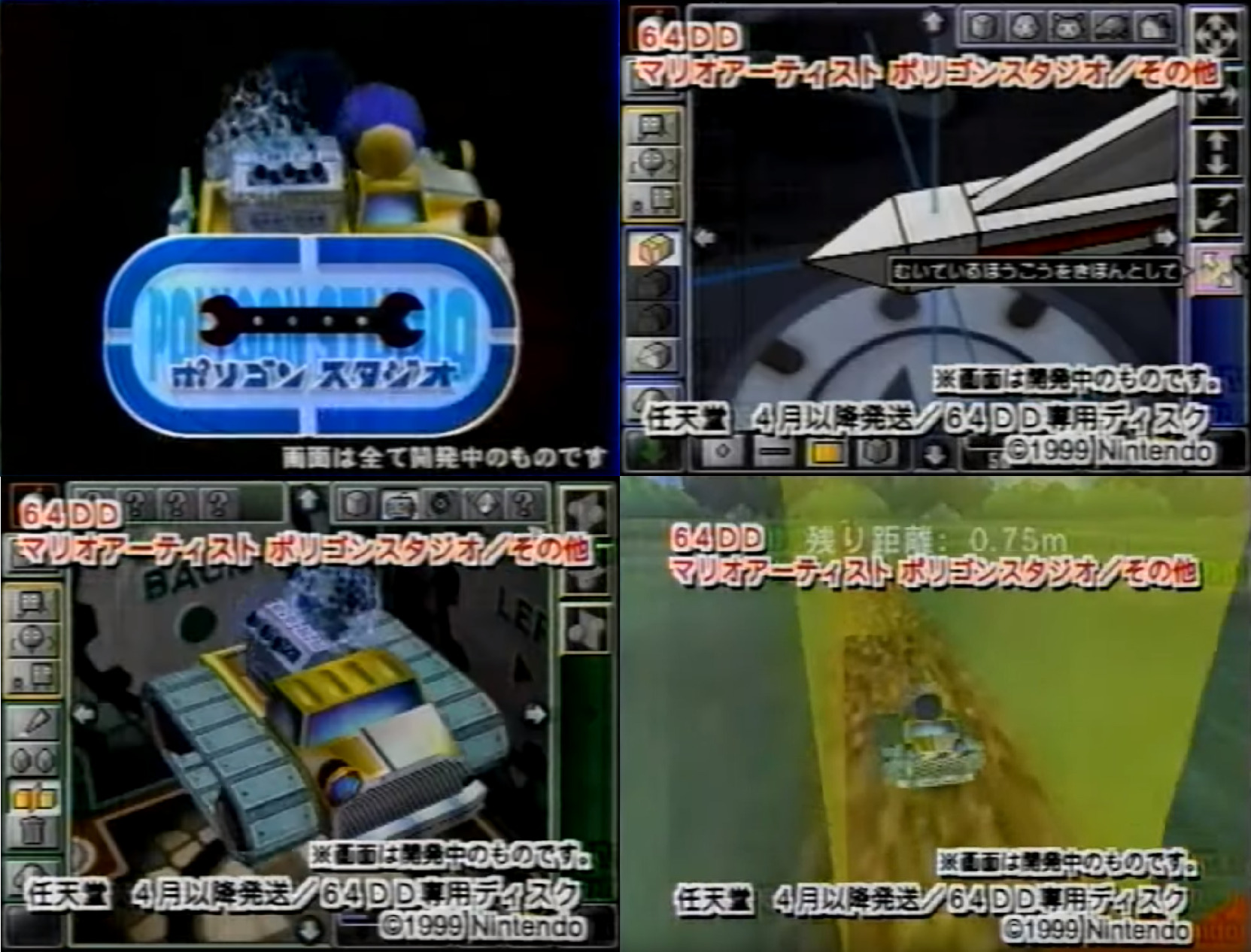
There’s not a lot of known cut content in this title. The best we can see of earlier versions is really just different user interface, with the same icons and same purpose.
Emulation
Now I have to talk about how to emulate this title: At this time, you have no choice but to use angrylion/Parallel based graphic plugins. This title does the weirdest uses of the RDP (the N64 GPU), and most plugins just don’t know what to do.
Using HLE plugins will result in the editors to not work as intended, they cannot detect what you are pointing at, you cannot paint textures either. Once it does work though, I’ll be the first to warn you all about it. Check the tutorial for the emulator that you use for more information on how to set up for Polygon Studio.
And that’s Mario Artist Polygon Studio, a really underrated title, which is generally only remembered for being Wario Ware’s inspiration, even though it has way more to offer than most people are willing to try.